Create 360 image with AI workflows have completely transformed how digital creators build virtual environments. Instead of needing a real location or a 360° camera, you can now generate a full panoramic scene using AI tools like ChatGPT, Midjourney, and Photoshop — and instantly turn it into an immersive virtual tour inside The Third Product.
In this guide, you’ll learn the full workflow:
from the idea → to the prompt → to generating the panorama → refining the seam → and finally uploading it into a virtual gallery.
Step 1 — Start With a Clear Concept (ChatGPT)
Every 360° scene begins with a well-defined idea.
For this tutorial, the goal was to create:
- a clean, modern gallery space
- soft ambient lighting
- white walls
- empty picture frames
- a calm atmosphere
- correct 2:1 aspect ratio required for panoramas
Using ChatGPT, we generated a precise, structured prompt that defines the room type, the lighting, the mood, and the technical details.
A clear prompt ensures the AI generator produces an accurate and usable 360° environment.
This method allows any creator to create a 360 image with AI even if the real location doesn’t exist.
Step 2 — Generate the 360 Image in Midjourney
With the prompt ready, the next step was to send it to Midjourney.
Why the 2:1 Ratio Matters
A true 360° panorama must use a 2:1 equirectangular format — twice as wide as it is tall.
This is the standard format for virtual tours and VR environments.
Midjourney supports this format and generates an image that includes:
- all four walls
- the floor
- the ceiling
- continuous perspective across the entire frame
The result feels like a real 360° photo, even if the location doesn’t exist in real life.
Step 3 — Fix the Seam in Photoshop
To make the panorama work perfectly, the edges of the image must connect seamlessly.
The process is simple:
- Duplicate the layer
- Shift it so the left and right edges meet exactly
- Use Photoshop’s AI “Generative Fill” to blend the seam
- Merge the result into one clean panoramic image
This ensures smooth 360° rotation inside any virtual tour viewer.
Upscale for High Quality
Before uploading, it’s recommended to upscale the image so it remains sharp inside the virtual gallery — especially on large screens or VR headsets.
We will cover the best upscaling methods in a separate video.
By using this workflow, you can create a 360 image with AI that looks seamless inside a virtual tour.
Step 4 — Upload the Image into The Third Product
Once the panorama is ready, simply upload it to The Third Product.
The platform instantly wraps the file into a full 360° scene, allowing you to:
- rotate the view
- explore the entire room
- experience the AI-generated gallery as if it were real
With a single upload, your static image becomes an interactive virtual environment.
Final Result — A Full 360° Virtual Gallery Created with AI
From a simple idea to a complete panoramic environment —
this workflow shows how AI, creativity, and The Third Product come together to unlock new possibilities for:
- educators
- creators
- museums
- photographers
- designers
- and anyone building virtual tours
You can now create spaces that don’t exist in reality, yet feel fully immersive in 360°.
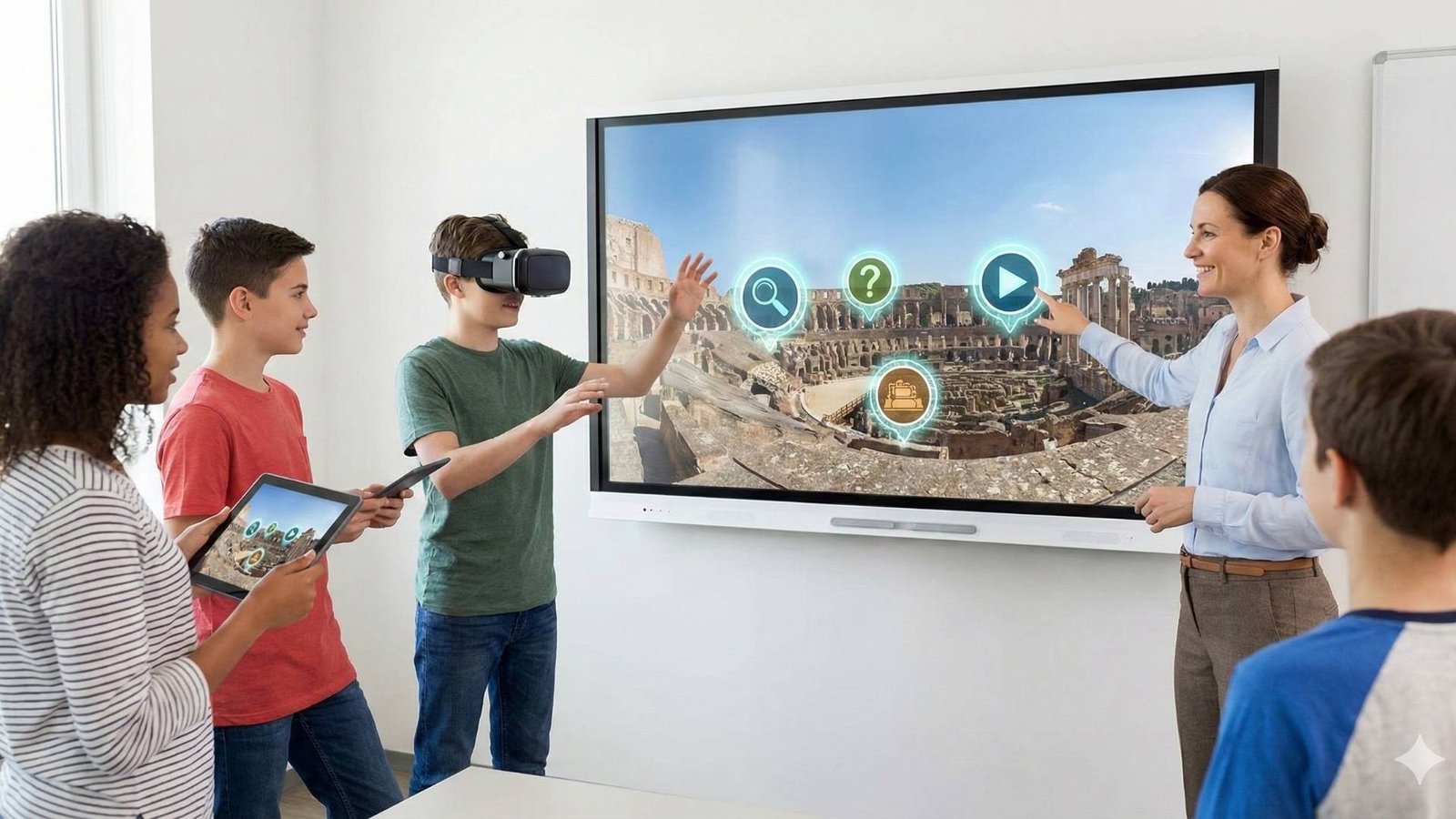
Many educators, museums, and designers now create 360 images with AI to build immersive experiences.
Want to discover more tools, tutorials, and virtual tour experiences?
Visit our homepage to explore everything The Third Product has to offer.
To learn more about the tools used in this process, you can explore Midjourney’s official documentation at docs.midjourney.com, review Adobe’s guide to generative AI editing in Photoshop at helpx.adobe.com/photoshop/using/generative-fill.html, and read about the equirectangular 2:1 panoramic standard on the Panotools Wiki at wiki.panotools.org/Equirectangular_Projection. For additional background on immersive content and VR best practices, Google’s VR developer resources at developers.google.com/vr provide helpful insights.